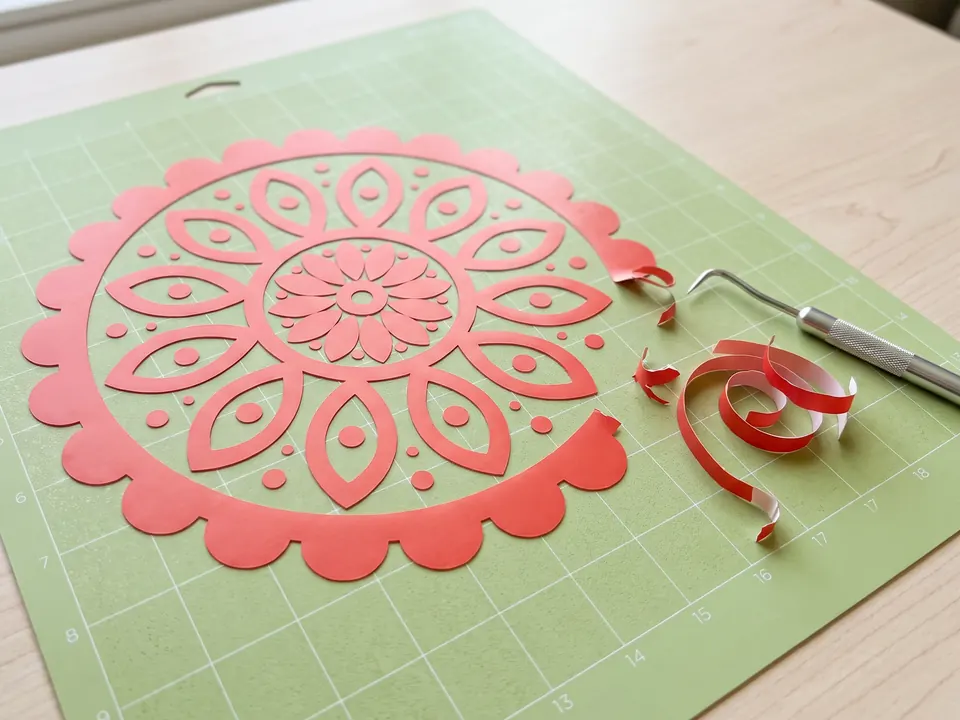
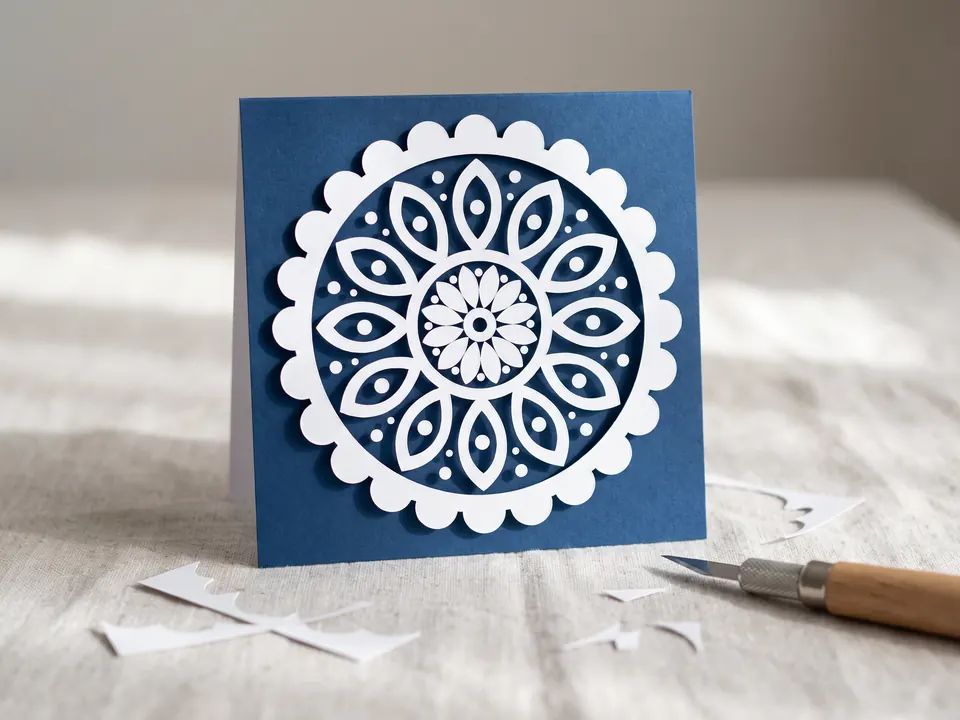
The cut follows every tiny detail
Add an Offset and cut that instead, so the machine follows one smooth outline.
Upload a drawing, logo or AI-generated design and get vector artwork that stays crisp from a one-inch sticker to a car decal. Use it for print-and-cut at home, or send it to a sticker printer.


Overlapping flat shapes with rounded corners and small details such as the stars, all kept as clean closed paths.
The short answer
Convert the image to an SVG so it prints sharply at any size, then add a cut line around it. For printed stickers, the cut line is an offset outline made in your cutting or design software. For cut vinyl decals, the shapes themselves are the cut lines, so the artwork needs solid colors.
Step by step
Five steps from picture to sticker sheet. The first three happen on this page; the rest are in your cutting software or with your printer.
Printed stickers can use any colors and gradients. Cut vinyl decals are made from solid sheets of vinyl, so they need flat colors and bold shapes.
Drop the image into the box at the top of this page. Zoom in on faces, lettering and small details, which are where a soft source image shows.
This page starts with Stacked and Remove background selected. Turn off Remove background if you want to keep the original backing color. The choices apply to the downloaded SVG; the preview stays unchanged.
In Cricut Design Space or Silhouette Studio, select the design and use Offset to create a border around it. If you are ordering from a sticker printer, most will add the cut line for you from your vector file.
For print-and-cut at home, combine the artwork into one printable layer, print it with registration marks and let the machine cut the offset. For a print shop, upload the SVG or a PDF saved from it.
Rules of thumb
These are common practice rather than hard limits. Your printer or machine may publish its own template.
| What | Rule of thumb | Why it matters |
|---|---|---|
| White border | 2–3 mm (about 1/8 in) offset | Hides small cutting misalignment on die-cut stickers. |
| Bleed | Extend background color past the cut line | Avoids a white sliver if the cut drifts. |
| Resolution | Vector, or 300 dpi if you export a PNG | Vector artwork has no pixels to blur when it is scaled up. |
| Cut vinyl colors | Solid fills, one per layer | Each color is cut from a separate sheet. |
| Small vinyl details | Avoid hairlines and specks | Tiny pieces lift during weeding and application. |
| Color | Proof before a large order | Screen colors print differently on vinyl and paper. |
Check your sticker printer's or cutting machine's own template before a large run.
What sticks
Printed stickers are forgiving: if it looks right in the preview, it will print. Cut vinyl needs the same care as any cut file.
Gradient support matters for printed stickers: smooth shading stays smooth instead of turning into bands of flat color.
Troubleshooting
Add an Offset and cut that instead, so the machine follows one smooth outline.
Keep Remove background on when downloading to remove the outer background. Enclosed white details stay in the file. Turn it off if the original background is part of your sticker design; add an Offset separately if you want a border.
Print from the SVG or a PDF saved from it, not from a small PNG.
Start from a larger, less compressed image for smoother gradients.
Design Space does not accept gradients in SVG uploads. For printed stickers, export a large PNG from the SVG and use Print Then Cut.
Print or order a single proof first, then adjust.
FAQ
For cut vinyl decals, yes: the cutter follows vector paths. For printed stickers a high-resolution image can work, but a vector file prints sharply at every size and makes it easy to add a clean cut line.
A die-cut sticker is cut through both the sticker and its backing, following the shape of the design. A kiss-cut sticker is cut only through the top layer, leaving the backing sheet intact so several stickers can share a sheet.
Use the Offset tool in Cricut Design Space or Silhouette Studio, or the offset path command in Inkscape, Illustrator or Affinity Designer. An offset of 2 to 3 mm is typical.
Yes. AI images are often small and slightly soft, and an SVG gives you clean edges you can print at any size. Check small details in the preview, because fine textures are simplified.
Yes for printed stickers: smooth blends are kept as SVG gradients. Cut vinyl cannot show gradients, because each color is a solid sheet.
Some images do not support these download options. If a download is unavailable, select Original and turn off Remove background to download the original SVG. You can then edit it in your vector software.
You can use the vectors you download in personal and commercial projects, as long as you have the rights to the original image. Tracing someone else's artwork does not give you the right to sell it.
Helpful next pages
Upload it, check the edges, and print it sharp at any size.
No signup · Preview before downloading
Updated