“Unsupported items” on upload
The SVG contains something other than solid shapes, almost always a gradient. Convert a flat-color version of the art, or upload the PNG and use Print Then Cut.
Upload a PNG or JPG and get an SVG for Design Space with solid-color shapes and smooth cut lines. This page starts with stacked layers and Remove background selected for your download.
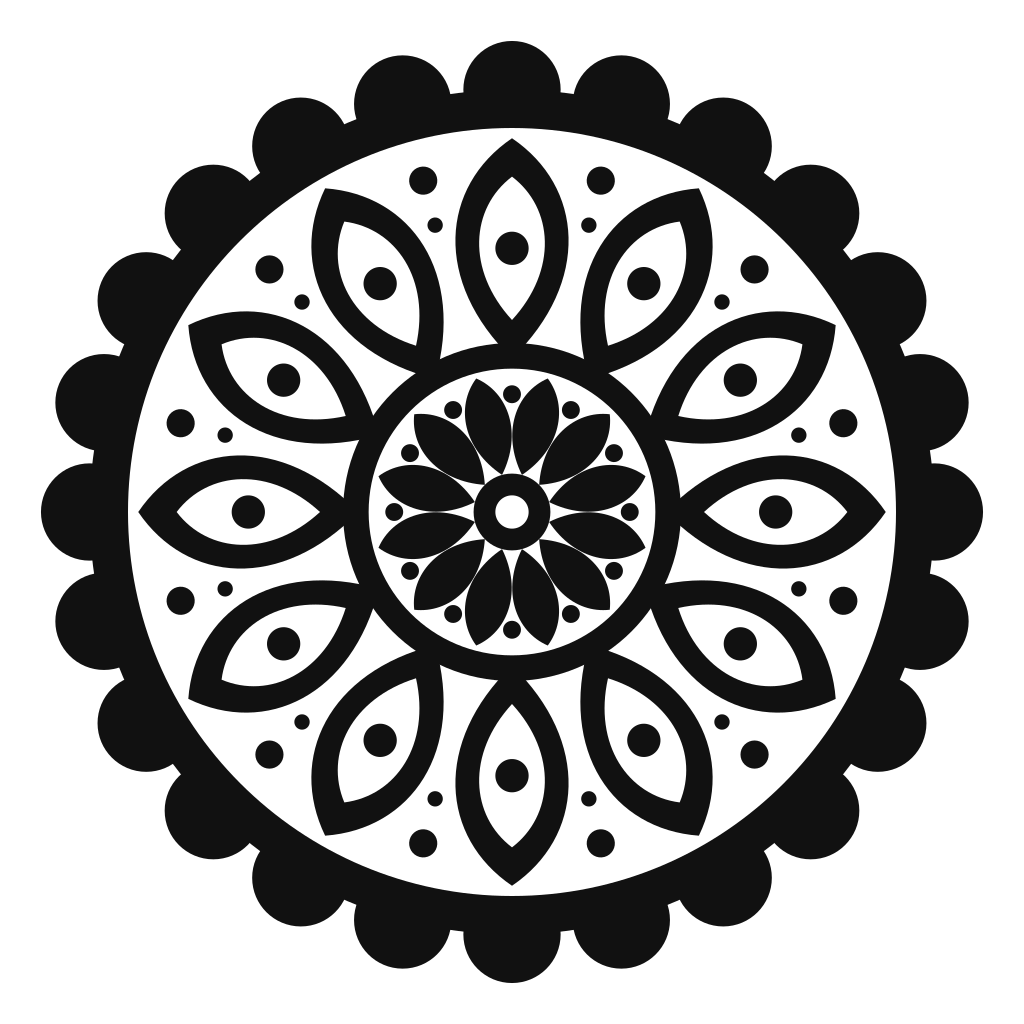
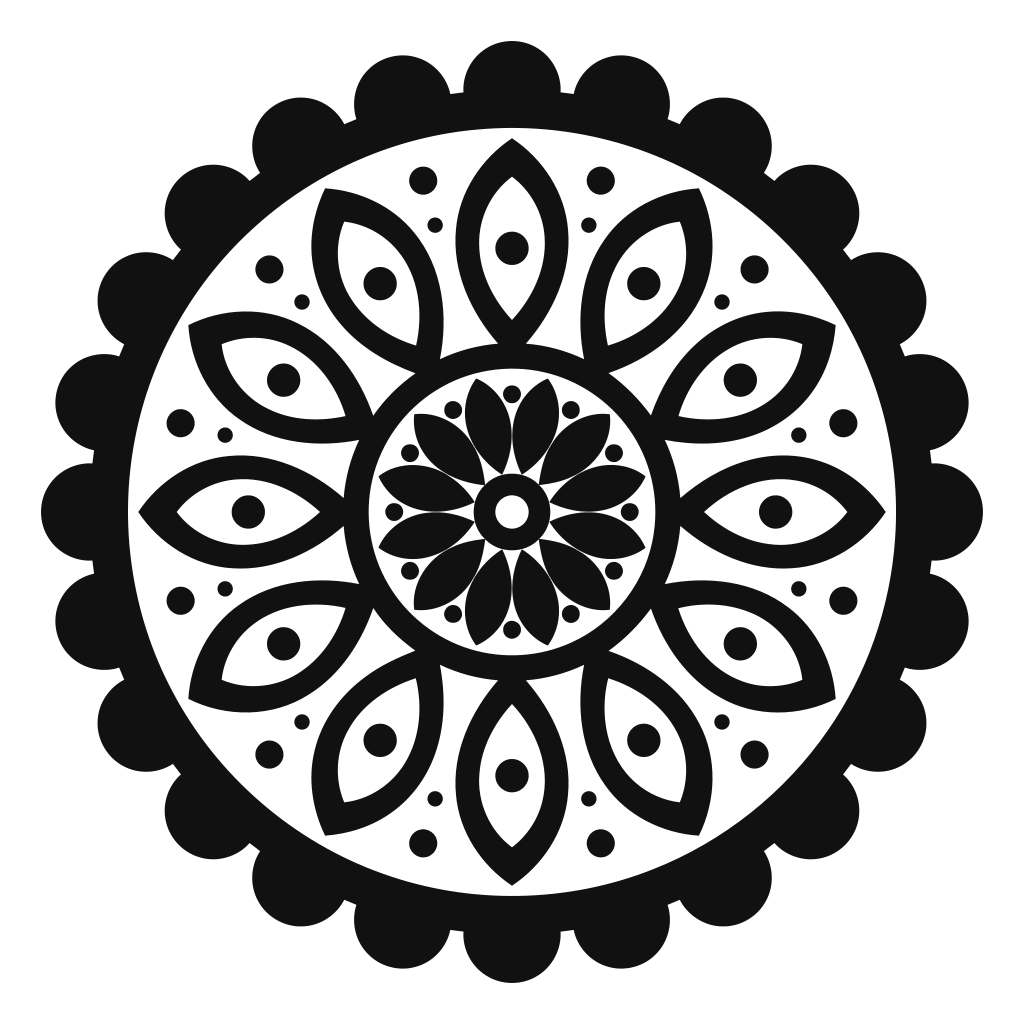
A single-color ornament with dozens of cut-outs, traced as one black path with smooth, closed outlines.
The short answer
Upload the image to Vectorizer Studio and check the preview. Stacked and Remove background are selected by default under Download options. Download the SVG, then in Cricut Design Space choose Upload, pick the file and add it to your canvas. Use flat-color artwork for vinyl, iron-on or cardstock; Design Space does not accept SVG gradients.
Step by step
Five steps from picture to cut. The first three happen on this page; the last two are in Design Space.
Use the largest, sharpest copy of the artwork, with solid colors. Screenshots and tiny thumbnails can give you wobbly edges, and the blade follows every wobble.
Drop the image into the box at the top of this page. When the vector appears, zoom in on small details and on any lettering. Check which areas are separate pieces and which are holes.
Keep Stacked for larger pieces underneath smaller details. Choose Side by side if you want pieces that fit edge to edge without overlaps. Remove background is already on. These choices apply to the downloaded SVG; the preview stays unchanged.
In a new project choose Upload, then Upload Image, and select the SVG. Give it a name, save it, then add it to your canvas from your uploads.
Type the width you need, give each layer the color of the material you will cut it from, and press Make. Check the imported shapes before cutting, especially small details and areas you want to leave open.
Settings and limits
Design Space is strict about what an SVG may contain. These are the rules that matter for a converted image.
| What | Limit or setting | What to do |
|---|---|---|
| Fills | Solid colors only | Start from flat-color art. Gradients and patterns are rejected as unsupported items. |
| Layers | Stacked or Side by side | Choose the layout under Download options before saving. Stacked can contain several paths of the same color; keep the palette small for fewer pieces to cut. |
| Text | Outlines only | Lettering in the SVG is already made of shapes, so it uploads without needing the font. |
| Cut size on a mat | 11.5 × 11.5 in on the 12 × 12 in mat | Larger designs move to the 12 × 24 in mat, which cuts about 11.5 × 23.5 in. |
| Size after upload | Set on the canvas | Type the width or height you want. An SVG scales without losing sharpness. |
| Photos and shaded art | Use Print Then Cut | Upload the PNG or JPG itself; your printer prints it and the machine cuts around the edge. |
Limits are from Cricut's Design Space help pages, checked October 2026. Cutting width depends on the machine: Joy models are narrower and Venture is wider.
What cuts well
A blade can only follow solid shapes. The simpler and bolder the artwork, the easier it is to cut and weed.
Stacked is selected for layering vinyl or cardstock, with larger pieces underneath smaller details. Choose Side by side for a design assembled edge to edge, such as slice-and-set iron-on. Follow your material maker’s layering guidance.
Troubleshooting
The SVG contains something other than solid shapes, almost always a gradient. Convert a flat-color version of the art, or upload the PNG and use Print Then Cut.
Turn on Remove background under Download options and download again. It is already selected when you start on this page. If you chose to keep the original file, you can remove its background shape in Design Space instead.
Design Space reads the SVG's size in pixels. Select the design and type the size you want; nothing gets blurry.
Speckled or noisy images can give you many small shapes. Start from a cleaner image, or use Contour to switch off cut lines you do not need.
Select the pieces that must stay in position and use Attach before you press Make.
The source was too small or too compressed. Use a larger original; the blade follows every wobble in the path.
Remove background keeps enclosed details that share the background color. If a detail joins the outer background, use a transparent PNG or an image with a contrasting background so it remains distinct.
FAQ
Yes, but it arrives as a single flat layer. That suits Print Then Cut and simple one-color cuts. For a design with several colors of vinyl or cardstock, use an SVG with colored shapes you can cut separately.
Design Space accepts only solid-color shapes in SVG files. Gradients, patterns, embedded photos, live text and linked images all trigger that message. With a converted image the cause is nearly always a gradient, so start from artwork with flat colors.
The number depends on the artwork and your download settings. This page starts with Stacked and Remove background selected. Stacked puts larger pieces underneath smaller details; Side by side makes pieces fit edge to edge without overlaps. A color can use several paths in a stacked file. Enclosed details that match the background color are kept when the outer background is removed.
Whatever you set. Select the design on the canvas and enter the width or height. A standard mat cuts up to 11.5 × 11.5 inches and the long mat about 11.5 × 23.5 inches.
Yes. The SVG is the same for every Cricut machine, because the upload happens in Design Space. Only the maximum cutting width changes between machines.
Some images do not support these download options. If a download is unavailable, select Original and turn off Remove background to download the original SVG. You can then edit it in your vector software.
You can use the vectors you download in personal and commercial projects, as long as you have the rights to the original image. Tracing someone else's artwork does not give you the right to sell it.
Helpful next pages
Upload it, check the layers, and have an SVG in Design Space a few minutes from now.
No signup · Preview before downloading
Updated