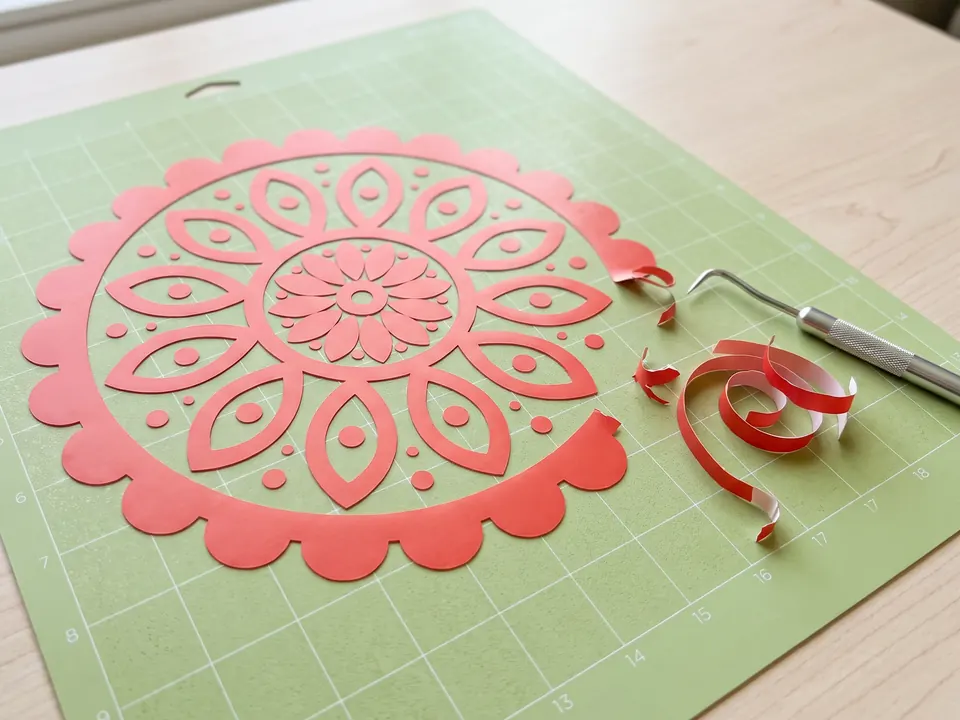
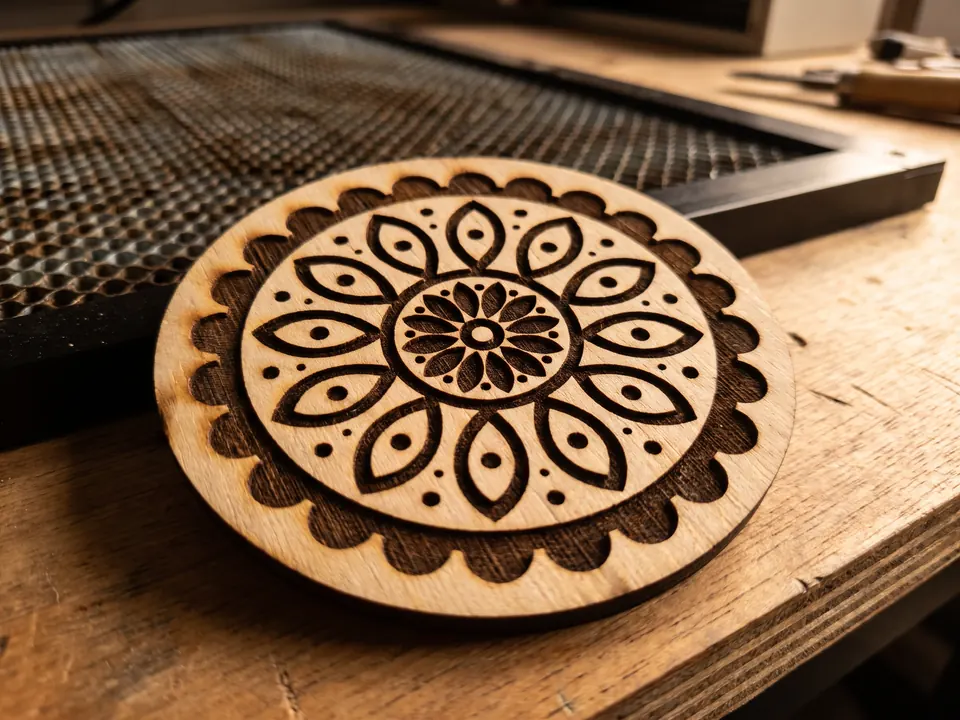
The SVG will not open
Basic Edition does not read SVG. Upgrade to Designer Edition, or save the SVG as DXF from Inkscape and open the DXF.
Upload a picture and get clean vector shapes for your Cameo or Portrait. This page starts with stacked layers and Remove background selected. Open the SVG in Silhouette Studio Designer Edition or higher and turn on its cut lines.
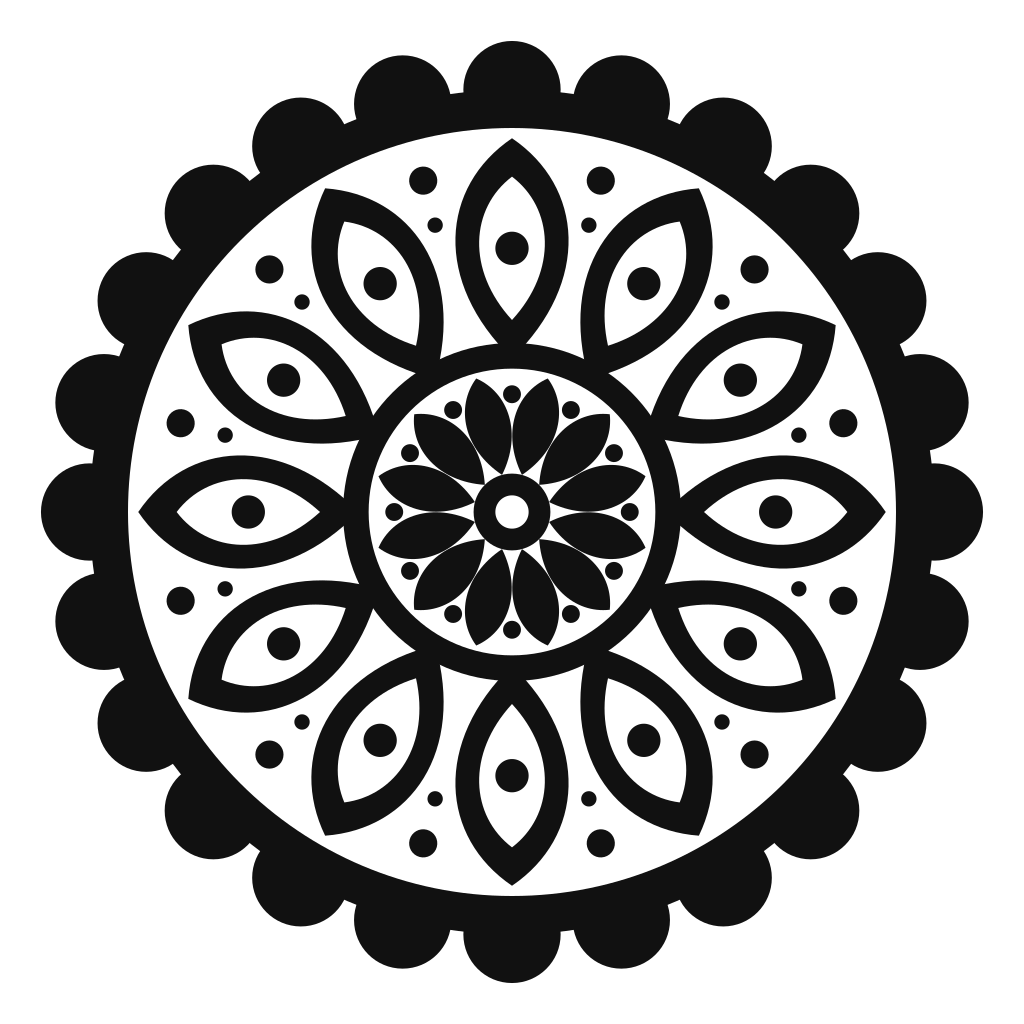
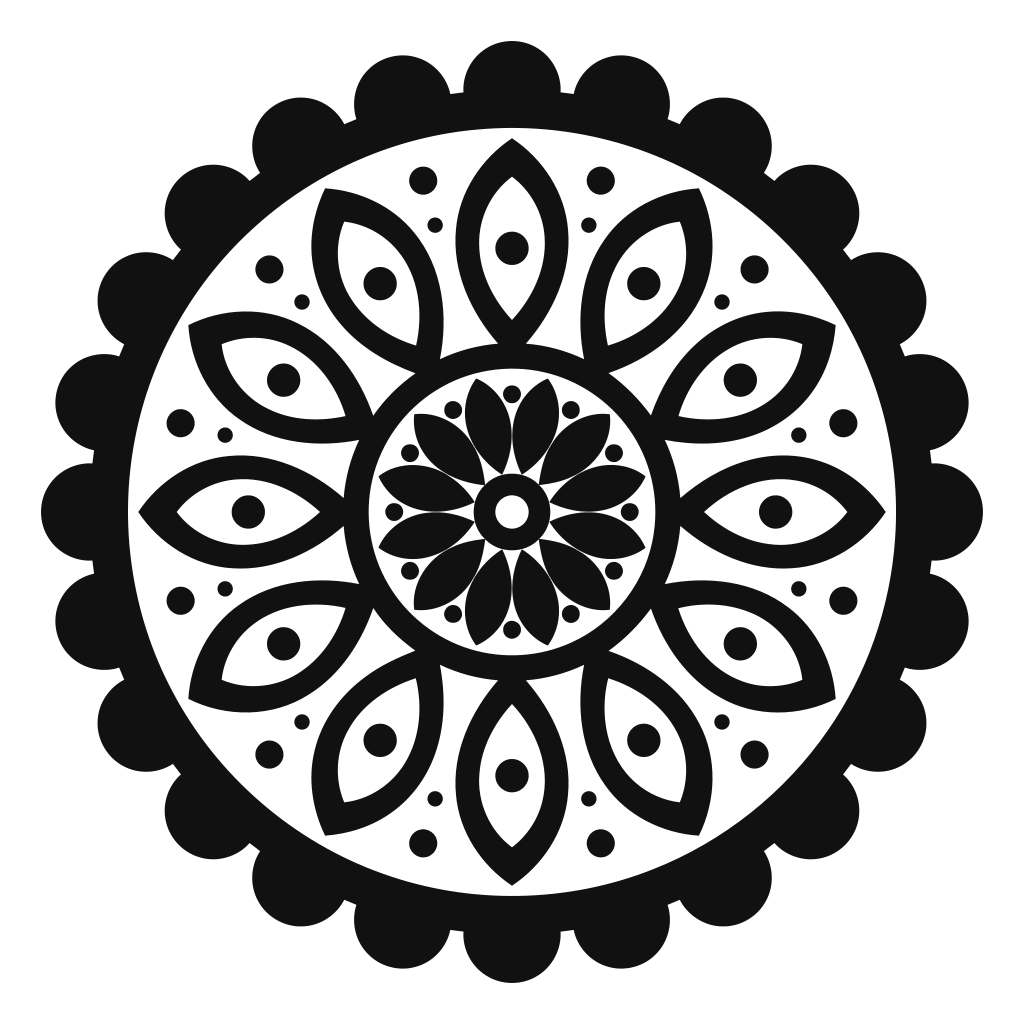
A single-color ornament with dozens of cut-outs, traced as one black path with smooth, closed outlines.
The short answer
Upload the image here, download the SVG, and open it in Silhouette Studio. SVG files open in Designer Edition and higher; the free Basic Edition opens DXF files instead. After opening, select the design and switch on its cut lines in the Send panel, because SVGs arrive without them.
Step by step
Five steps from picture to cut. The first three happen on this page; the last two are in Silhouette Studio.
Use the largest, sharpest copy of the image, with solid colors. Soft or tiny images can give you wobbly edges that the blade will follow.
Drop the image into the box at the top of this page. Zoom in on small details and lettering; every edge in the preview is a line the blade can cut.
This page starts with Stacked and Remove background selected. Keep Stacked for larger pieces underneath smaller details, or choose Side by side for pieces that fit edge to edge. The options change the downloaded SVG; the preview stays unchanged.
Use File, then Open, or drag the SVG onto the mat. This needs Designer Edition or higher. On Basic Edition, convert the SVG to DXF first (Inkscape is free and can save DXF) and open that instead.
Right-click the design and choose Ungroup if you need to select individual pieces. Set the size, select what you want to cut, open the Send panel and choose Cut or Cut Edge. The bold lines show where the blade will go.
Settings and limits
Most surprises with SVG files in Silhouette Studio come down to the edition you own and one setting in the Send panel.
| What | Setting or limit | What to do |
|---|---|---|
| Software edition | Designer Edition or higher for SVG | On Basic Edition, convert the SVG to DXF, or upgrade once. |
| Cut lines | Off by default for SVG | Select the design and choose Cut or Cut Edge in the Send panel. |
| Cut or Cut Edge | Cut follows every path; Cut Edge only the outer edge | Use Cut Edge when overlapping shapes should cut as one piece. |
| Fills | Solid colors | A blade cannot cut a gradient, so start from flat-color art. |
| DXF route | Outlines only, no colors | Fill colors are lost in DXF, so sort the shapes by hand. |
| Cutting width | 12 in on a standard Cameo, 8 in on a Portrait | Resize on the mat; an SVG stays sharp at any size. |
Edition requirements follow Silhouette's edition comparison and long-standing user guides, checked October 2026. Confirm against the current comparison before buying an upgrade.
What cuts well
A blade can only follow solid shapes. The simpler and bolder the artwork, the easier it is to cut and weed.
Keep Stacked for layered vinyl or cardstock, or choose Side by side for pieces assembled edge to edge. Remove background is selected for either layout. Follow your material maker’s layering guidance, and use Print & Cut for photos and shaded art.
Troubleshooting
Basic Edition does not read SVG. Upgrade to Designer Edition, or save the SVG as DXF from Inkscape and open the DXF.
SVGs open without cut lines. Select the design, go to Send and choose Cut.
Turn on Remove background under Download options and download again. If you are using an original SVG with the background kept, ungroup it and remove the background shape before cutting.
Check Cut against Cut Edge. Cut follows every path; Cut Edge follows only the outside.
Use a cleaner, larger source image with fewer colors, then convert again.
DXF carries outlines only. Open the original SVG in Designer Edition if you need colored shapes.
Remove background keeps enclosed details that share the background color. If a detail joins the outer background, use a transparent PNG or an image with a contrasting background so it remains distinct.
FAQ
Yes, in Designer Edition, Designer Edition Plus and Business Edition. The free Basic Edition cannot open SVG files, but it can open DXF files.
Convert the SVG to DXF and open the DXF. Inkscape, which is free, can open the SVG and save it as DXF. The outlines survive the conversion; fill colors do not.
Silhouette Studio opens SVG files as artwork without cut settings. Select the design, open the Send panel and choose Cut or Cut Edge.
The built-in Trace panel works well for simple, high-contrast shapes and gives you a single outline. Vectorizer Studio gives you an SVG with editable colored shapes and smooth, closed outlines for multi-color designs. Previewing is free, so compare both on your own image.
Yes. The SVG opens in Silhouette Studio, which drives every Silhouette machine. Only the cutting width differs between them.
Some images do not support these download options. If a download is unavailable, select Original and turn off Remove background to download the original SVG. You can then edit it in your vector software.
You can use the vectors you download in personal and commercial projects, as long as you have the rights to the original image. Tracing someone else's artwork does not give you the right to sell it.
Helpful next pages
Upload it, check the cut lines, and open a clean SVG in Silhouette Studio.
No signup · Preview before downloading
Updated