It imports as a solid block
Check that Remove background was on when you downloaded the SVG. If you kept the background, download again with it removed. In your 3D software, extrude only the pieces you want raised.
Upload a logo, icon or drawing and get clean closed outlines. Import the SVG into Tinkercad, Fusion or your slicer, give it a height, and you have a printable model for keychains, signs, stamps and cookie cutters.


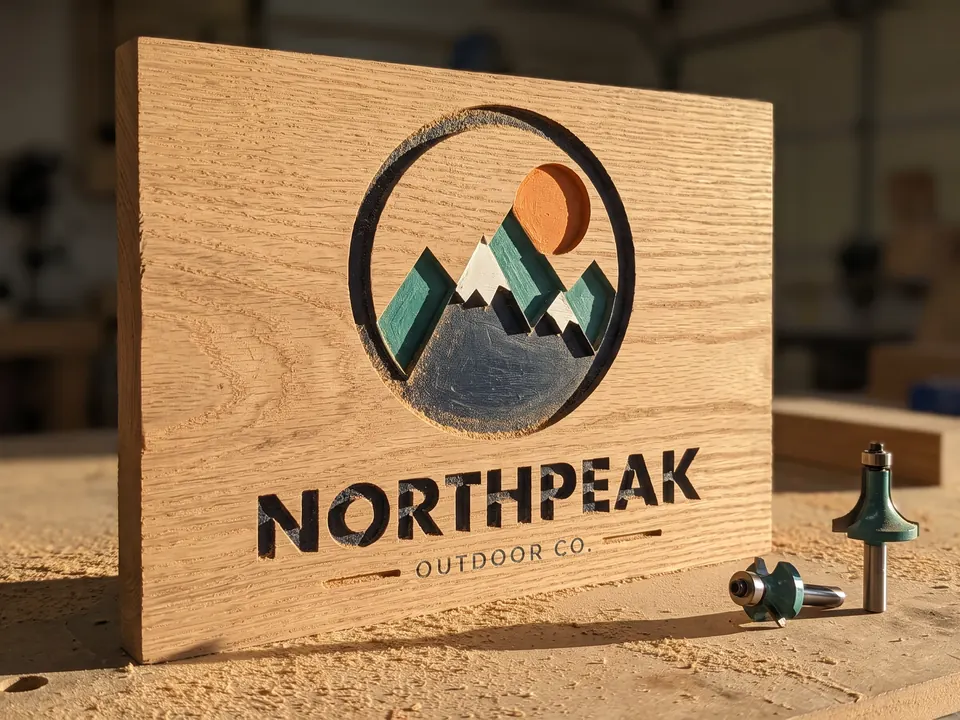
Flat brand colors and a wordmark on a solid background. Each non-background color is one path, so you can recolor it in one change.
The short answer
Convert the image to an SVG, import the SVG into a 3D program, and extrude it to give the flat shape a height. Tinkercad, Fusion, Bambu Studio and PrusaSlicer all accept SVG files. A bold, single-color image works best, because the outline of each shape becomes a wall of the model.
Step by step
Five steps from picture to print. The first three happen on this page; the rest are in your editor or 3D software.
A solid logo, icon or silhouette is ideal. Thin lines and tiny gaps may be narrower than your printer can lay down, so thicker shapes are safer.
Drop the image into the box at the top of this page and look at the edges in the preview. Every outline becomes a wall of the model, so they should be smooth and closed.
This page starts with Side by side and Remove background selected. Side by side gives you non-overlapping shapes for separate bodies. These choices apply to the downloaded SVG; the preview stays unchanged.
Keep the parts you want to extrude and remove any unwanted pieces in a vector editor or your 3D software. Enclosed areas matching the background color stay as shapes, so remove them or make them holes if they should remain open.
In Tinkercad, click Import and choose the file. In Fusion, start a sketch and use Insert, then Insert SVG, and extrude the profiles you want. Bambu Studio and PrusaSlicer can add an SVG straight to the plate. Set the footprint in millimeters, give it a height, then export an STL or slice it.
Rules of thumb
General guidance for filament printers with a 0.4 mm nozzle. Measure these at the final printed size, not on screen.
| What | Rule of thumb | Why it matters |
|---|---|---|
| Walls and strokes | At least 0.8 mm (two nozzle widths) | Thinner features are skipped by the slicer or print as weak single lines. |
| Gaps between shapes | At least 0.5 mm | Smaller gaps fuse together when printed. |
| Raised logo or text | 0.6–1.2 mm tall | Enough to read clearly without a long print. |
| Base for tags and keychains | 1.5–3 mm thick | Thick enough to stay rigid. Add a 4–5 mm hole for a ring. |
| Tinkercad import | SVG up to 25 MB | A vector logo is usually a few dozen kilobytes. |
| Units | Set the size in millimeters on import | SVG sizes are in pixels, so always enter the real dimension yourself. |
Printing advice is general guidance, not a limit of your printer. Import behavior is from Autodesk, Prusa and Bambu Lab documentation, checked October 2026.
What prints well
Extruding turns every outline into a wall. Shapes that are bold on screen are sturdy in plastic.
For a flat multi-color print, keep Side by side selected so the color shapes do not overlap, and keep Remove background on. Flat artwork on a solid or transparent background works well. Use a small palette and check the separate bodies before slicing.
Troubleshooting
Check that Remove background was on when you downloaded the SVG. If you kept the background, download again with it removed. In your 3D software, extrude only the pieces you want raised.
That message appears for SVGs made of strokes, text or embedded pictures. Your downloaded SVG is made of filled shapes, so check that you imported it and not the original image.
Remove background keeps enclosed areas that share the background color. Remove those pieces or set them to holes in your 3D software if they should stay open. For a stencil or cookie cutter, bridge any enclosed centers that must stay attached.
They are narrower than one extrusion line. Scale the model up, or thicken the artwork before converting.
Curves become short straight segments in an STL. Raise the export resolution, or import the SVG directly into the slicer.
SVG sizes are in pixels and each program converts them differently. Set the width in millimeters after import, with the aspect ratio locked.
FAQ
Not directly. A printer needs a 3D model, and a picture is flat. The usual route is to convert the image to an SVG, extrude the SVG in a 3D program to give it height, and export an STL for your slicer.
Convert the image to an SVG here, import the SVG into Tinkercad or Fusion, extrude it to the height you want and export the result as an STL. Bambu Studio and PrusaSlicer accept the SVG itself, which skips the STL step.
Tinkercad, Fusion, Blender, Bambu Studio, OrcaSlicer and PrusaSlicer all import SVG files. Tinkercad is the quickest for beginners; Fusion gives the most control over heights, fillets and holes.
A bold logo or silhouette in one color on a plain background. Aim for strokes and gaps of at least 0.8 mm at the final printed size.
Yes. Keep Side by side and Remove background selected, then import the SVG into your 3D software. Use the color shapes as separate bodies and assign a filament to each. Enclosed white details are kept as shapes; remove any pieces that should be holes. Keep the palette small to limit filament changes.
Yes. Convert a silhouette, import the SVG, and build a thin wall along the outline, usually 0.8 to 1.2 mm thick and 12 to 15 mm tall.
Some images do not support these download options. If a download is unavailable, select Original and turn off Remove background to download the original SVG. You can then edit it in your vector software.
You can use the vectors you download in personal and commercial projects, as long as you have the rights to the original image. Tracing someone else's artwork does not give you the right to sell it.
Helpful next pages
Upload it, check the outlines, and extrude a clean SVG in your 3D software.
No signup · Preview before downloading
Updated