The laser runs the same line twice
Neighboring cut-out pieces share that edge. Cut only one color layer, or use Edit, then Delete Duplicates in LightBurn. It removes exact copies; check the preview for any shared edges that remain.
Upload a logo, drawing or silhouette and get closed vector outlines to cut and filled shapes to engrave. Import the SVG into LightBurn, xTool Creative Space or the Glowforge app and give each color an operation.
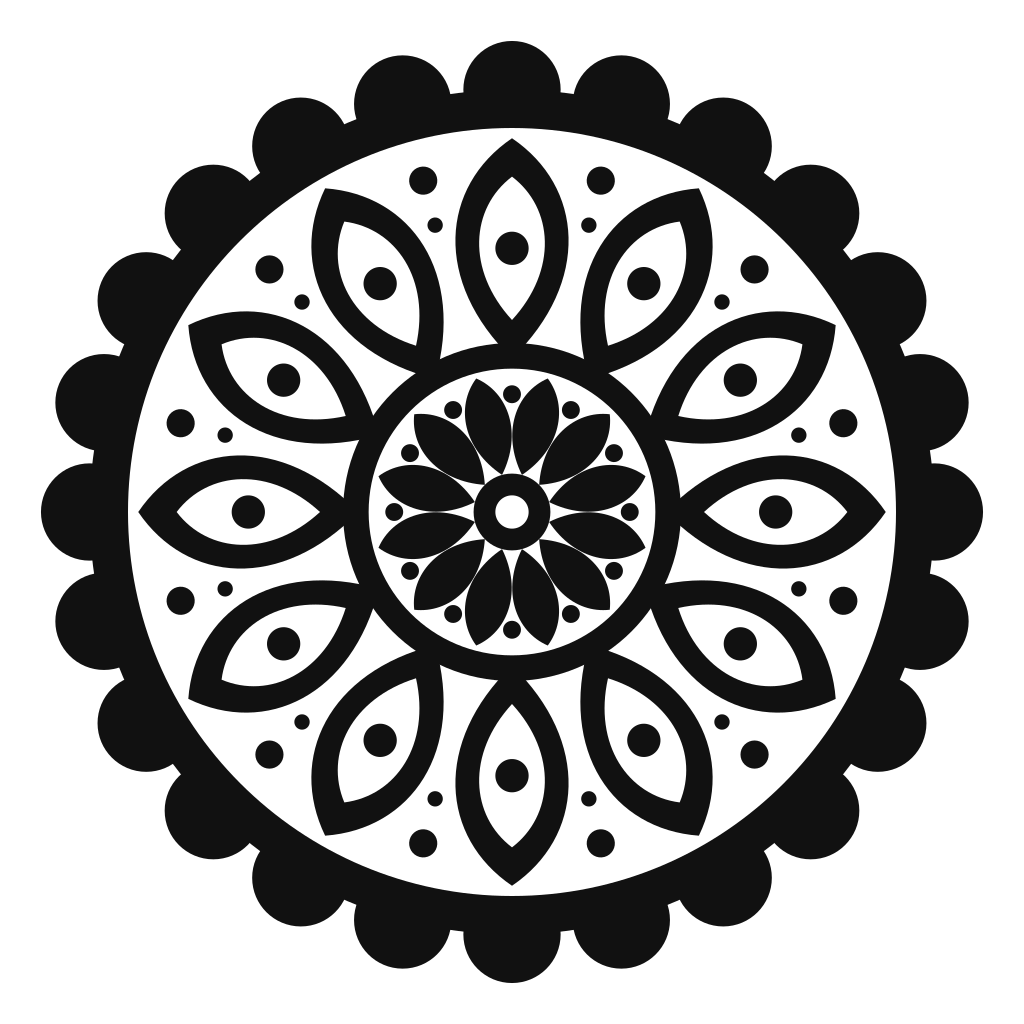
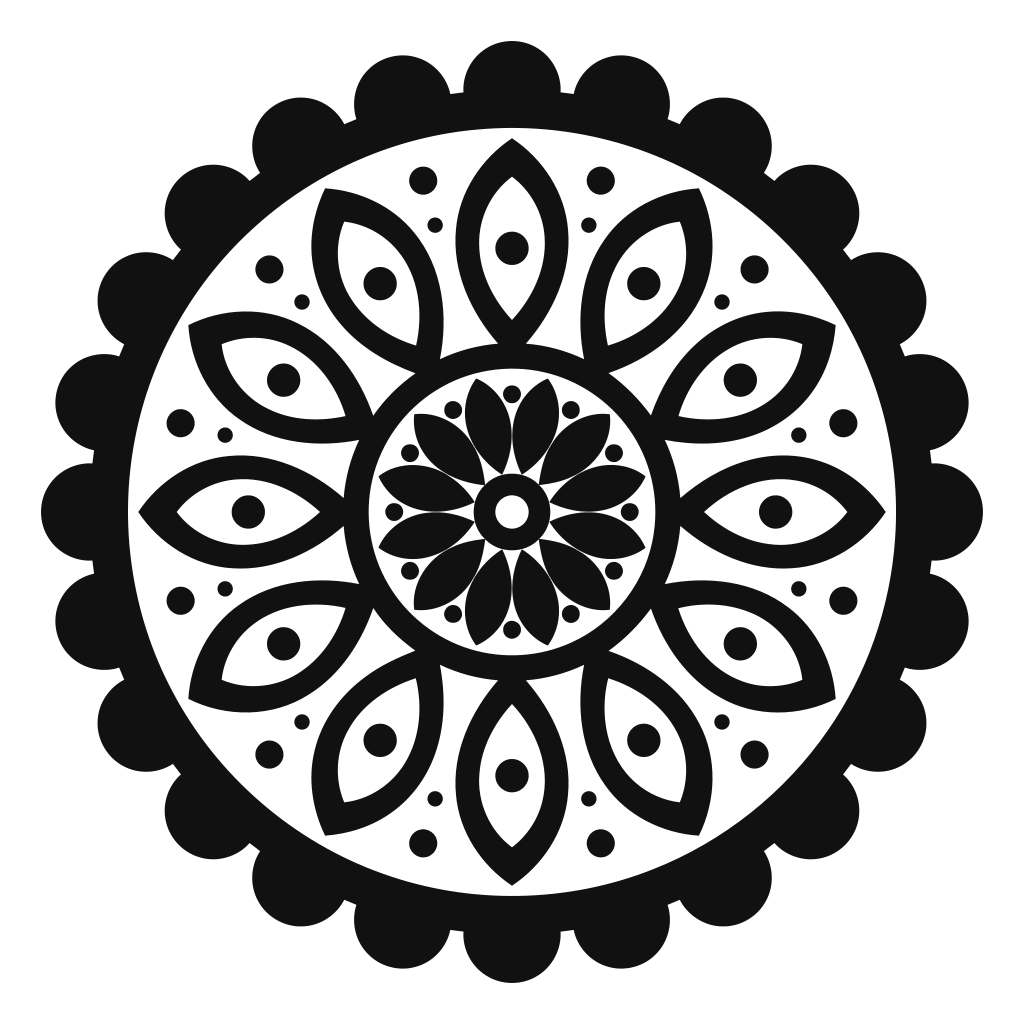
A single-color ornament with dozens of cut-outs, traced as one black path with smooth, closed outlines.
The short answer
Upload the image, check the preview and download the SVG. This page starts with Side by side and Remove background selected, giving you non-overlapping filled areas. Import it into your laser software and choose cut, score or engrave for each part. Neighboring shapes can still share cut edges, so check the laser preview before running the job.
Step by step
Five steps from picture to first test cut. The examples use LightBurn; other laser software follows the same order.
Logos, silhouettes, line art and stencils work best. If the picture is a photo you want to engrave, skip vectorizing and use your laser software's image mode instead.
Drop the image into the box at the top of this page and zoom in on the preview. The edge of every shape is a path your laser will travel, so look for smooth curves and closed forms.
Keep Side by side and Remove background selected for non-overlapping shapes without the outer background. These settings apply to the downloaded SVG; the preview stays unchanged.
In LightBurn, use File, then Import; shapes land on layers that match their colors. Set a layer to Line to cut or score its outline, or to Fill to engrave the inside. xTool Creative Space and the Glowforge app do the same job with their own names for these modes.
Remove or disable any shapes you do not want to cut or engrave, including enclosed pieces you want to leave empty. Run the laser preview to check for repeated cuts along shared edges, then test on scrap.
Rules of thumb
Power and speed belong to your machine and material. These are the parts decided by the vector file.
| What | Rule of thumb | Why it matters |
|---|---|---|
| Cut lines | Closed outlines in Line mode | An open path will not release the part from the sheet. |
| Engraved areas | Closed shapes in Fill mode | Fill needs a closed loop to know what is inside. |
| Shared edges | Cut each edge once | Neighboring cut-out pieces share an edge. Cut only one color layer, or use LightBurn's Delete Duplicates and check the preview for remaining shared cuts. |
| Kerf | Roughly 0.1–0.2 mm on hobby lasers | The beam removes material, so slots and inlays need an offset for a snug fit. |
| Small details | Scale up or simplify | Tiny islands and hairlines burn away or fall out of the sheet. |
| Size | Set in millimeters after import | SVG sizes are in pixels, so check the real dimensions against your material. |
Software behavior is from the LightBurn documentation, checked October 2026. Kerf, power and speed vary by machine and material, so always run a test cut.
What burns well
A laser follows edges and fills closed areas. Artwork with distinct shapes gives it both.
Side by side is selected so filled areas do not overlap. This works with suitable flat artwork on solid or transparent backgrounds. Neighboring shapes still share edges, so review the cut paths. For stencils, bridge enclosed letter centers that must stay attached.
Troubleshooting
Neighboring cut-out pieces share that edge. Cut only one color layer, or use Edit, then Delete Duplicates in LightBurn. It removes exact copies; check the preview for any shared edges that remain.
Fill mode needs closed loops. The downloaded shapes are closed, so this usually follows a manual edit. Use Close Path, or import the original file again.
Turn on Remove background under Download options and download again. If you are using the original file with its background kept, delete that shape before assigning laser operations.
The source image was too small. Convert a larger original so curves stay smooth at the size you engrave.
An enclosed island is free once its outline is cut. Set those shapes to engrave instead, or add bridges.
SVG sizes are in pixels, and each program converts them differently. Select everything, lock the aspect ratio and type the width you need.
Remove background keeps enclosed details that share the background color. If a detail joins the outer background, use a transparent PNG or an image with a contrasting background so it remains distinct. Choose which remaining pieces to cut or engrave in your laser software.
FAQ
Most laser software imports SVG and DXF for vector cutting and scoring, and PNG or JPG for photo engraving. SVG is a practical choice for converted artwork because it keeps colors, which the software uses to separate operations.
You can engrave from a PNG or JPG, but you cannot cut along its edges, because an image has no paths for the laser to follow. Converting it to an SVG gives you those outlines.
No. Photo engraving works from the image itself, using your laser software's dithering or grayscale mode. Vectorizing is for artwork with distinct shapes, such as logos, text and line art.
Start from a single-color silhouette and keep Remove background on when downloading. Import the SVG and select the silhouette’s outline for cutting. Enclosed shapes in the original artwork may still need to be excluded if you want only the outside edge.
Yes. All three import SVG files. LightBurn maps the colors onto its layers, and xTool Creative Space and the Glowforge app let you choose cut, score or engrave for each part after import.
Some images do not support these download options. If a download is unavailable, select Original and turn off Remove background to download the original SVG. You can then edit it in your vector software.
You can use the vectors you download in personal and commercial projects, as long as you have the rights to the original image. Tracing someone else's artwork does not give you the right to sell it.
Helpful next pages
Upload it, check the outlines, and import a clean SVG into your laser software.
No signup · Preview before downloading
Updated